
The basics
The Jio World Convention Centre has 25 meeting rooms across four floors, plus 2 business lounges and 6 meeting pods. Devcon opens 12 spaces for booking at rooms.devcon.org: ten meeting rooms on Levels 1 and 2, and the Pink and Blue Discussion Corners on Level 3.
Special Rooms is a production and communications area. It covers the meeting and discussion rooms, the Interview and Press Room on Level 1, and the Content Corner on Level 3, which holds the Podcast Room. Check in at the Volunteer Check-In desk with the Coordination Support team. The desk is on the right as you enter through Gate 20, Ground Floor (Level 0), and Volunteer HQ is Level 1, Suite 103.
Room names on the Devcon map
Devcon names its meeting suites on the official map, after Ethereum upgrades. Only Levels 1 and 2 have named suites. Levels 0 and 3 have none on the map, and Level 4 is not on it. Suites 101, 103, 104 A and 201 carry no name on the map. Suites 105 A and 105 B are each one hall split into two rooms, so each number appears twice. Suites 102, 104 B, 202 and 203 are named on the map but are not among the 12 spaces in the booking system.
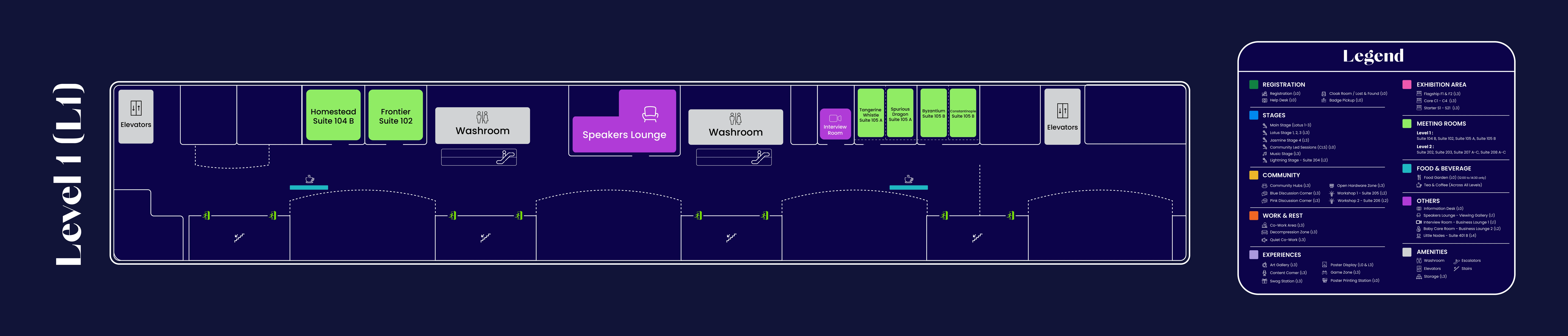
| Suite | Name on the map | Use |
|---|---|---|
| Suite 102 | Frontier | Meeting suite |
| Suite 104 B | Homestead | Meeting suite |
| Suite 105 A | Tangerine Whistle | Meeting suite |
| Suite 105 A | Spurious Dragon | Meeting room, other half of Suite 105 A |
| Suite 105 B | Byzantium | Meeting suite |
| Suite 105 B | Constantinople | Meeting room, other half of Suite 105 B |
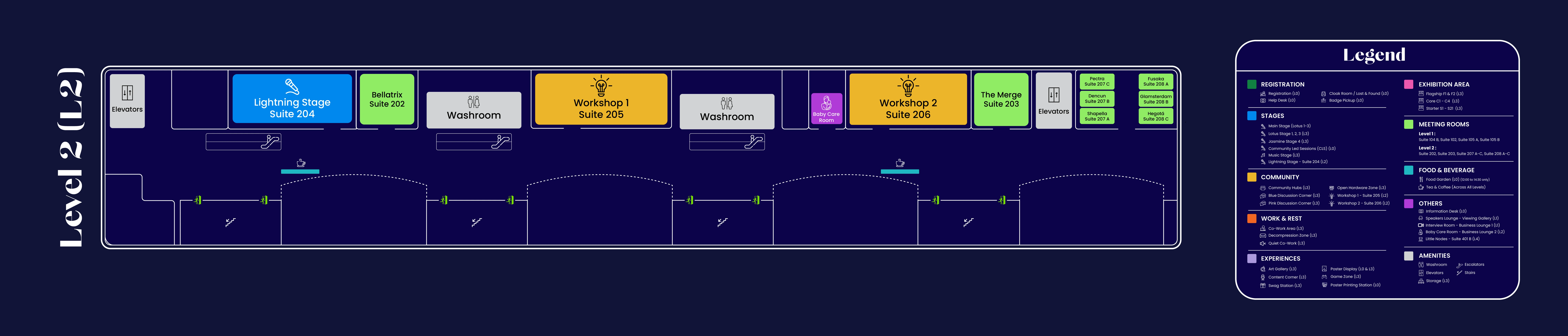
| Suite | Name on the map | Use |
|---|---|---|
| Suite 202 | Bellatrix | Meeting suite |
| Suite 203 | The Merge | Meeting suite |
| Suite 204 | Lightning Stage | Stage |
| Suite 205 | Workshop 1 | Workshop room |
| Suite 206 | Workshop 2 | Workshop room |
| Suite 207 A | Shapella | Meeting suite |
| Suite 207 B | Dencun | Meeting suite |
| Suite 207 C | Pectra | Meeting suite |
| Suite 208 A | Fusaka | Meeting suite |
| Suite 208 B | Glamsterdam | Meeting suite |
| Suite 208 C | Hegotá | Meeting suite |
Every meeting room at the venue
Figures are the venue's own, from its official fact sheet. Seating shows the most people each layout holds. A dash means the room is not set up that way. Devcon may use only some of these rooms.
| Room | Area (sq m) | Theatre | Classroom | Round-table | U-shape |
|---|---|---|---|---|---|
| Executive Boardroom Suite 101 | 187 | - | - | - | 14 |
| Meeting Suite 102 | 106 | 108 | 45 | 40 | 34 |
| Meeting Suite 103 | 114 | 120 | 54 | 48 | 34 |
| Meeting Suite 104 A | 123 | 120 | 54 | 48 | 34 |
| Meeting Suite 104 B | 113 | 120 | 54 | 48 | 34 |
| Meeting Suite 105 A | 113 | 120 | 54 | 48 | 34 |
| Meeting Suite 105 B | 116 | 120 | 54 | 48 | 34 |
| Business Lounge 1 | 48 | - | - | - | - |
| Room | Area (sq m) | Theatre | Classroom | Round-table | U-shape |
|---|---|---|---|---|---|
| Executive Boardroom Suite 201 | 187 | - | - | - | 14 |
| Meeting Suite 202 | 114 | 120 | 54 | 48 | 34 |
| Meeting Suite 203 | 115 | 120 | 54 | 48 | 34 |
| Meeting Suite 204 A | 121 | 120 | 54 | 48 | 34 |
| Meeting Suite 204 B | 112 | 120 | 54 | 48 | 34 |
| Meeting Suite 205 A | 129 | 144 | 63 | 48 | 40 |
| Meeting Suite 205 B | 129 | 144 | 63 | 48 | 40 |
| Meeting Suite 206 A | 114 | 120 | 54 | 48 | 34 |
| Meeting Suite 206 B | 116 | 120 | 54 | 48 | 34 |
| Meeting Suite 207 A | 21 | 15 | - | 8 | - |
| Meeting Suite 207 B | 18 | 15 | - | 8 | - |
| Meeting Suite 207 C | 21 | 15 | - | 8 | - |
| Meeting Suite 208 A | 16 | 15 | - | 8 | - |
| Meeting Suite 208 B | 18 | 15 | - | 8 | - |
| Meeting Suite 208 C | 19 | 15 | - | 8 | - |
| Business Lounge 2 | 55 | - | - | - | - |
| Room | Area (sq m) | Theatre | Classroom | Round-table | U-shape |
|---|---|---|---|---|---|
| Executive Boardroom Suite 301 | 187 | 132 | 42 | 48 | 36 |
| Room | Area (sq m) | Theatre | Classroom | Round-table | U-shape |
|---|---|---|---|---|---|
| Meeting Suite 401 A | 134 | 132 | 54 | 48 | 36 |
| Meeting Suite 401 B | 134 | 132 | 54 | 48 | 36 |
The six pods are 200 sq ft each and hold up to 20 people when merged. The two business lounges are small, quieter spaces with a TV, suited to about five people.
Official fact sheets and floor plans
- Meeting rooms fact sheet (PDF), with floor plans for all four floors.
- Convention halls (Jasmine Halls) fact sheet (PDF)
- Lotus Ballroom fact sheet (PDF)
- Exhibition halls (Pavilions) fact sheet (PDF)
These are reference documents only. The Devcon map, with all activities added, will replace them when it is released.
Your team
Each area has two Volunteer Leads, one for the morning shift and one for the afternoon. Your Volunteer Lead is your first point of contact on shift. Names come from Volunteer Training Session #2 on 16 October 2026 and can change.
| Role | Who |
|---|---|
| Devcon area | Production and Comms |
| Devcon workstream leads | Calvin, Winnie, Emily (communications lead) |
| Volunteer lead, AM shift | Naksh, @Naksh012 on Telegram |
| Volunteer lead, PM shift | Manik, @themanikdiaries on Telegram |
Meeting and discussion rooms at a glance
Your job at the door is simple: match the person to the booking, tap Check In no later than 5 minutes after the start time, and book free rooms for walk-ins. The system enforces every other rule.
Where and when: Jio World Convention Centre, Mumbai, 3 to 6 November 2026. Rooms are bookable 09:00 to 18:00 IST in 30-minute slots on Levels 1 and 2. Booking system: rooms.devcon.org. Attendees book there themselves. You log in with a volunteer account and see the names behind every booking.
| Rule | What it means at the door |
|---|---|
| Max 60 min per booking (min 30) | A group that wants longer must book a second slot later, if it is free |
| Max 2 hours per person per day | The system blocks a 3rd hour. Only book extra time as a walk-in if the room is free right now and nobody is waiting |
| Check-in opens 10 min before start | The Check In button appears 10 minutes before the slot |
| Not checked in 5 min after start, room released | The booking disappears and the room becomes free for anyone |
| Attendees can only book upcoming slots | If someone wants a room right now, you book it for them as a walk-in |
| Dencun and Pectra are EF only | Only @ethereum.org emails can book them. Everyone else uses the general rooms |
Your four tasks
- Check in people who have a booking (match name or email, tap Check In).
- Let no-shows release on their own, then point waiting people to the free room.
- Book walk-ins into free rooms, including slots already in progress.
- Answer booking questions, and escalate anything broken (see What not to touch, and who to call).
Rooms and floor plans
There are 12 bookable spaces across three levels. In the system each room is shown as Name, room code and capacity, for example Shapella, MR 207A, 10 pax. The door signs show the room code, so match on the code.
| Level | Room (in the system) | Room code | Seats | Who can book |
|---|---|---|---|---|
| 1 | Tangerine Whistle | MR 105A | 21 | Everyone |
| 1 | Spurious Dragon | MR 105A | 16 | Everyone |
| 1 | Byzantium | MR 105B | 21 | Everyone |
| 1 | Constantinople | MR 105B | 12 | Everyone |
| 2 | Shapella | MR 207A | 10 | Everyone |
| 2 | Dencun | MR 207B | 10 | EF only |
| 2 | Pectra | MR 207C | 16 | EF only |
| 2 | Fusaka | MR 208A | 12 | Everyone |
| 2 | Glamsterdam | MR 208B | 10 | Everyone |
| 2 | Hegotá | MR 208C | 10 | Everyone |
| 3 | Pink Discussion Corner | Jasmine Hall | TBC | Everyone |
| 3 | Blue Discussion Corner | Jasmine Hall | TBC | Everyone |
MR 105A and MR 105B are each one hall split into two rooms, so each code has two bookable rooms. Check which half the person booked before you let them in.
Levels 1 and 2
The maps with every suite are in The basics above. On the Level 2 render, the labels pre-date the final setup. MR 207B (Dencun) and MR 207C (Pectra) are now EF only, even though the render says "General meeting room". The old "MR 6 to 11" numbers are not used anywhere in the booking system.
Level 3, Jasmine Hall
The Pink and Blue Discussion Corners are in Jasmine Hall on Level 3. They are booked the same way as the rooms, and there is no floor plan for them yet.
Before your shift
You need a tablet in landscape or a laptop. A phone works, but the room grid is cramped on a small screen.
- Go to rooms.devcon.org/Web/index.php and sign in with the volunteer login Calvin gives you. Do not share it, and never sign in on an attendee's phone.
- Open the grid for your rooms: general rooms at schedule.php?sid=1, and the EF rooms (Dencun, Pectra) at schedule.php?sid=2. You can also use the Schedule menu at the top.
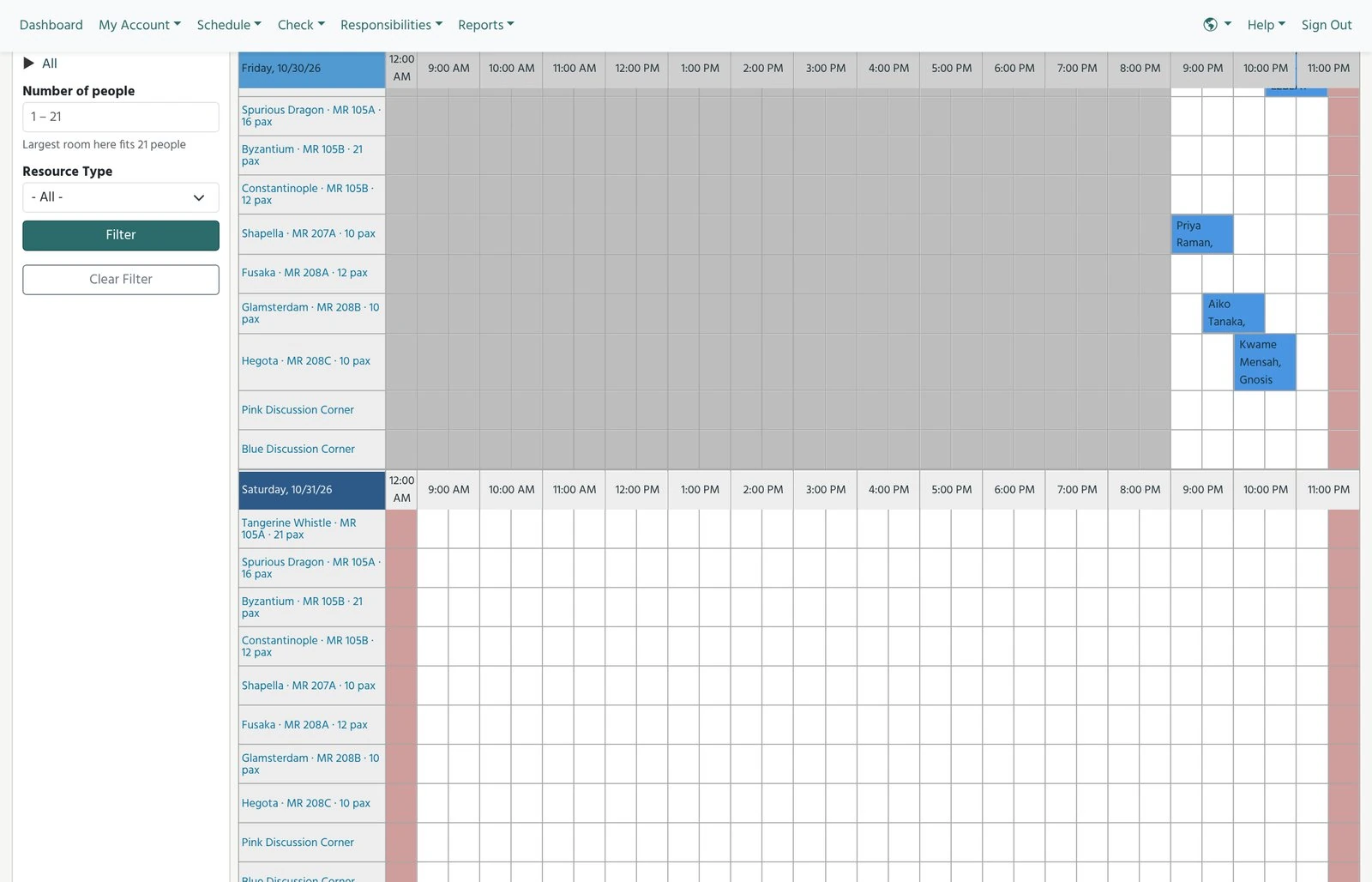
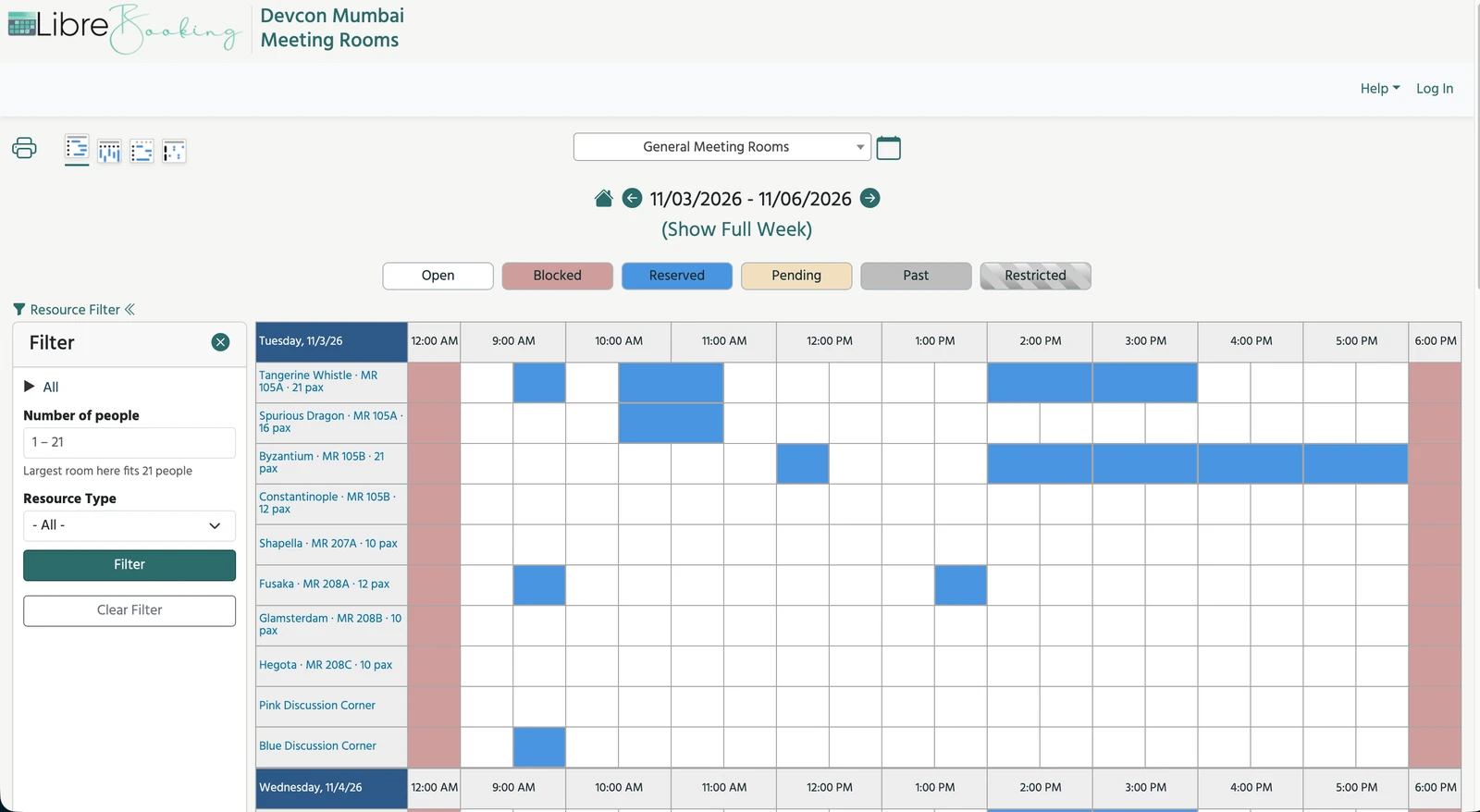
- The grid always starts on today. Rooms are rows, times are columns.
- Refresh the page every few minutes, and always before checking someone in. The grid does not update on its own.
On the grid, each blue block is a booking and shows the name and organisation the person typed. White cells are free. Grey cells are in the past or outside booking hours. Signed in as a volunteer, you see names. The public link only shows that a slot is taken.
Checking someone in
Check-in takes under a minute. It must happen between 10 minutes before the start and 5 minutes after it, or the room is released.
- Refresh the grid and tap the booking block for that room and time.
- Ask first, then compare. Ask "What name or email is the booking under?" Do not read the booking out to them. It should match two fields. Your name and organisation is what they typed when booking, for example Priya Raman, Lido. Owner shows attendees as Guest Guest followed by their email, which is normal for everyone who booked without an account. EF staff show their own name and @ethereum.org email.
- If they are unsure, ask to see the confirmation email on their phone. It names the room and time.
- Check the group fits. If more people turn up than the room seats, offer a bigger room that is free.
- Tap the yellow Check In - Released in N minutes button. You will see You are checked in. Tap Close and let them in.
Only the person who booked needs to match. The people they are meeting go in with them.
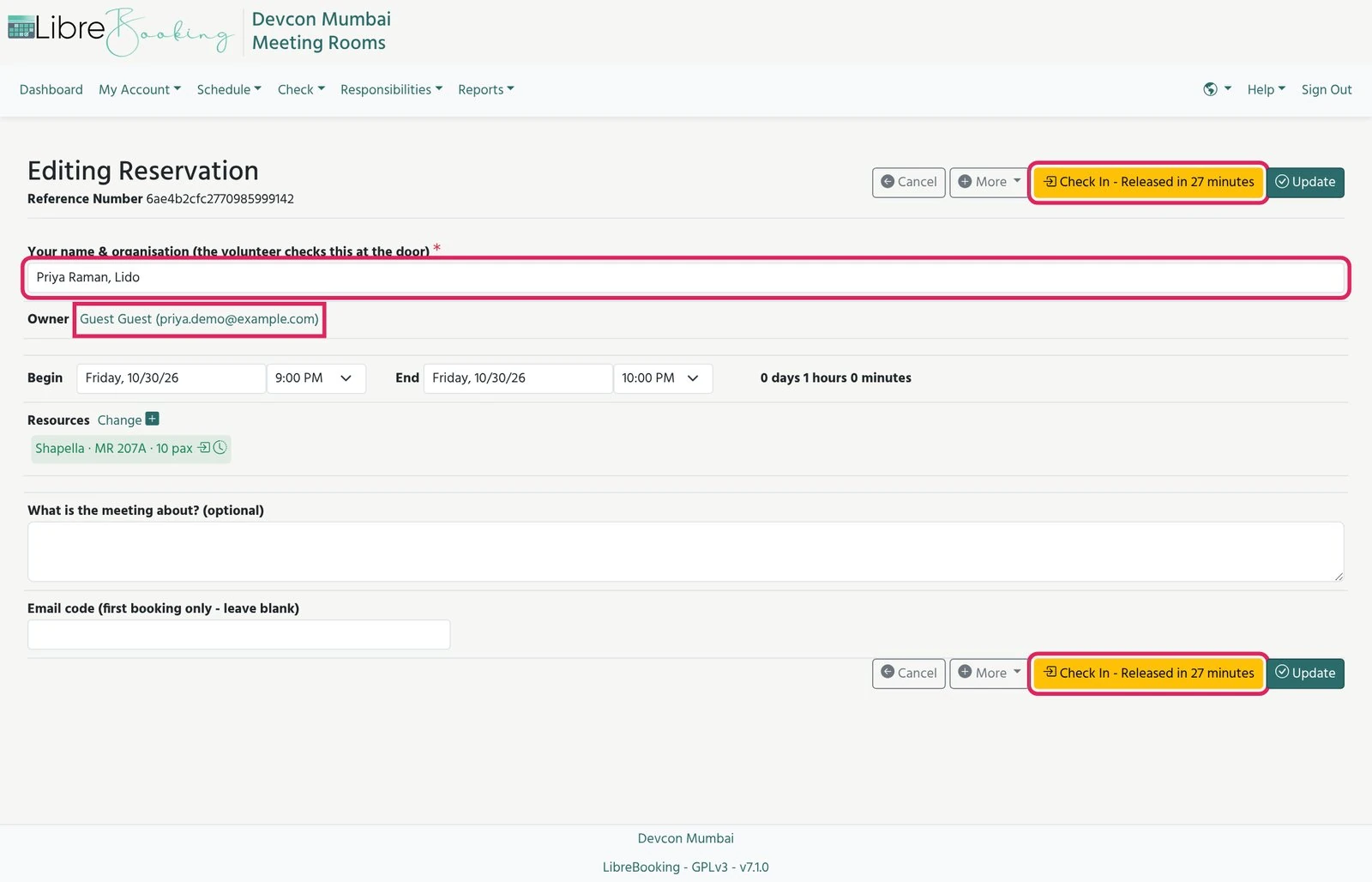
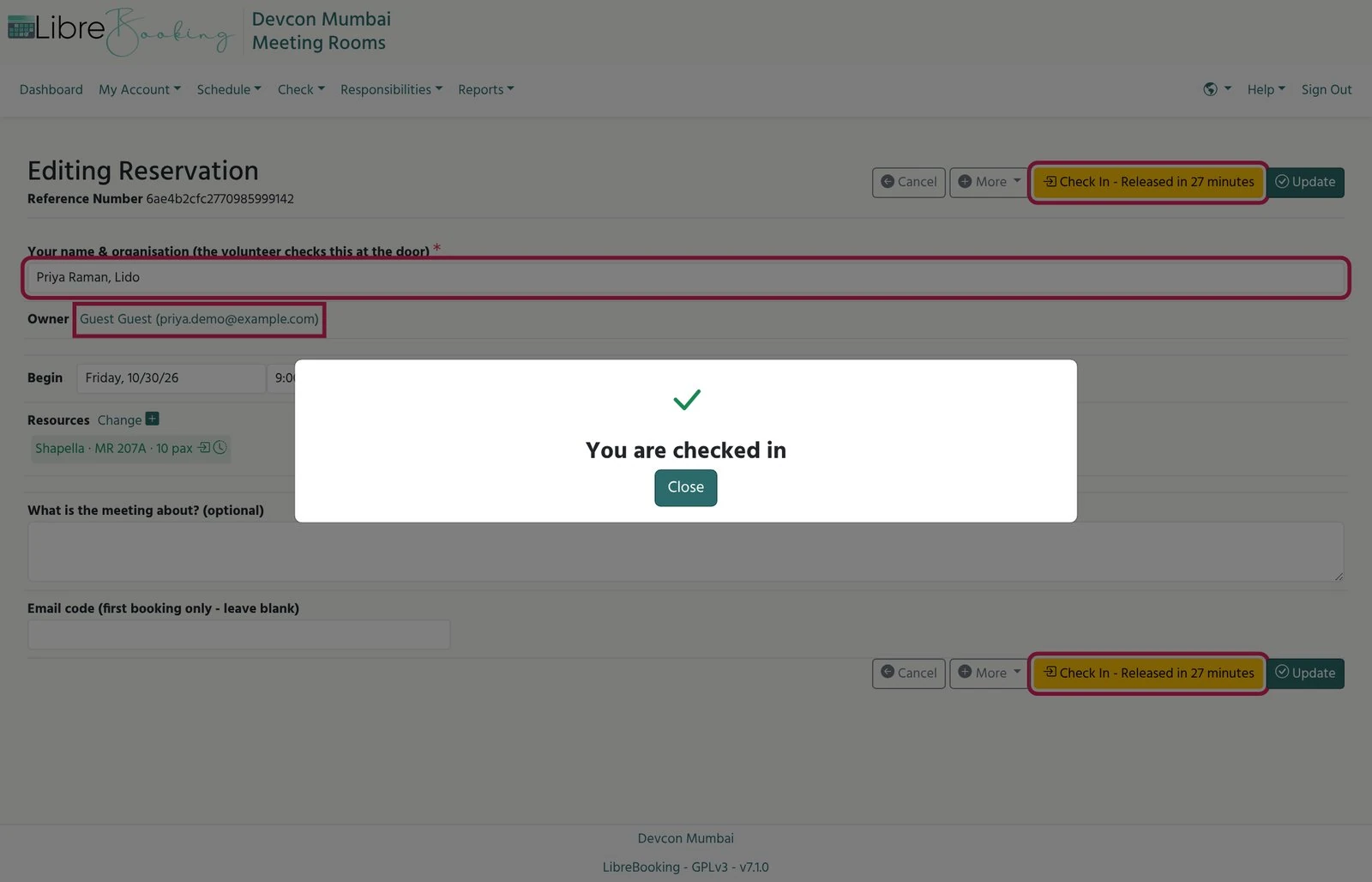
Leave two buttons alone on this page. Update saves edits, so only use it if you meant to change the booking. Cancel just closes the page without changing anything.
If there is no Check In button
| What you see | What it means | What to do |
|---|---|---|
| No button, start is more than 10 min away | Check-in has not opened yet | Ask them to come back closer to the time |
| No Check In button, or a Check Out button instead | Already checked in | Let them in. Only tap Check Out when the meeting has ended |
| The booking is gone from the grid | Released as a no-show (5 min after start) | If the room is still free, book it for them as a walk-in |
| Name or email does not match | Wrong room, wrong time, or not their booking | Check the grid for their name in other rooms. Do not let them in until it matches |
No-shows, walk-ins and changes
No-shows
You do not need to do anything. If nobody checks in within 5 minutes of the start, the system deletes the booking and the room turns white (free) on the grid. Refresh, then offer the room to anyone waiting.
Walk-ins (someone wants a room now)
Attendees cannot book a slot that has already started, so you book it for them.
- Refresh the grid and find a white (free) cell for now in a room that fits the group.
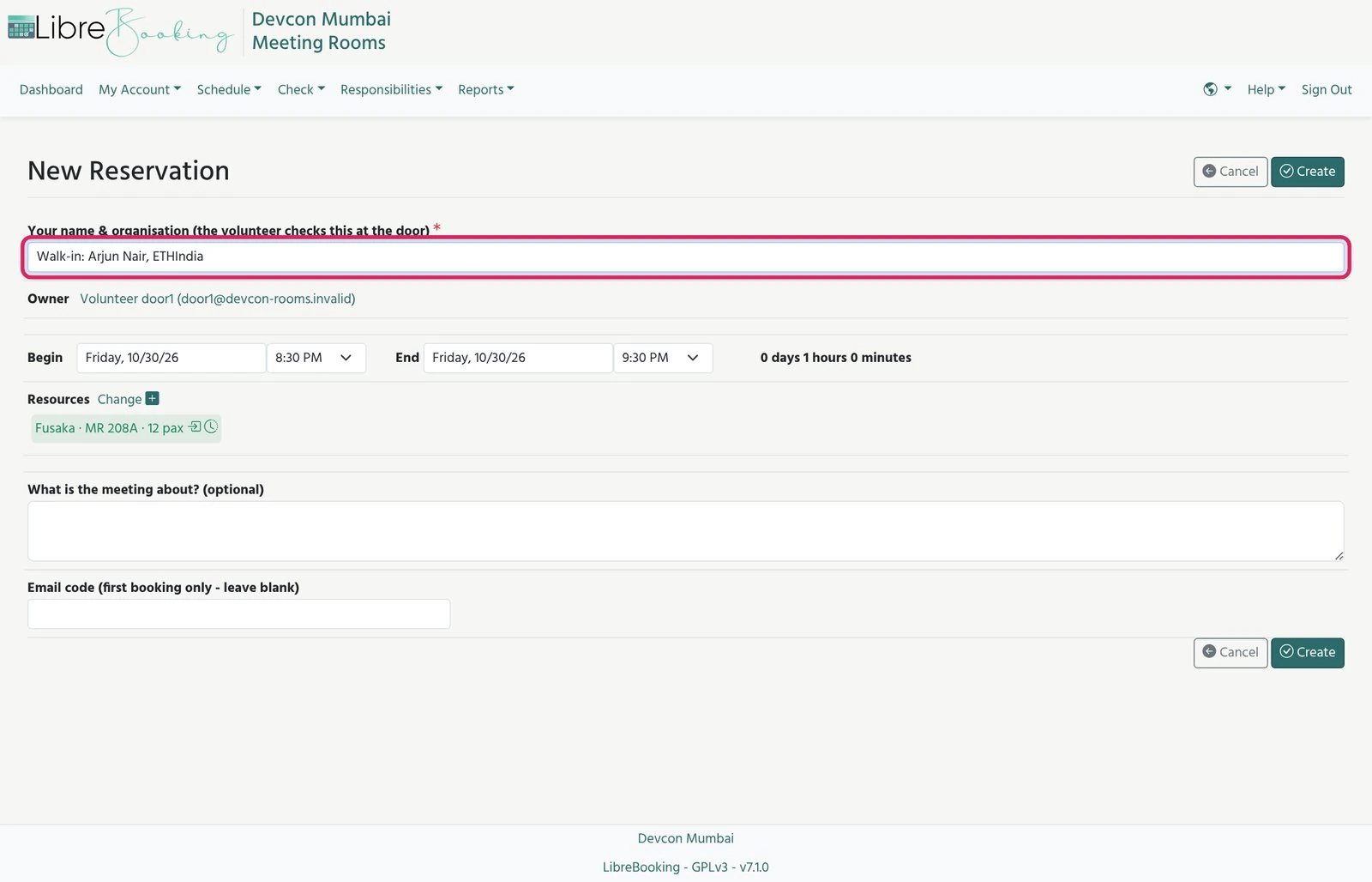
- Tap that cell. A New Reservation form opens with you as the owner.
- In Your name & organisation, type
Walk-in: Name, Organisation. - Set End to no more than 60 minutes after Begin. It cannot run into the next booking.
- Leave Email code blank and tap Create.
A walk-in for a slot that has already started is checked in automatically, so it will not be released. If you book a later slot for someone, check them in when they arrive, like any other booking.
Volunteer accounts skip the limits. The system will not stop you booking more than 60 minutes, more than 2 hours a day, or an EF room for a non-EF guest. Keep walk-ins to 60 minutes, and only book Dencun or Pectra for EF staff.
Finding a booking
Use this when someone cannot find their booking on the grid, or only has a reference number.
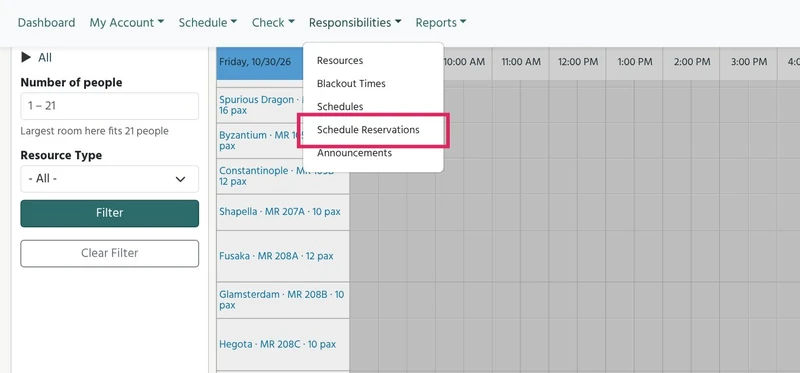
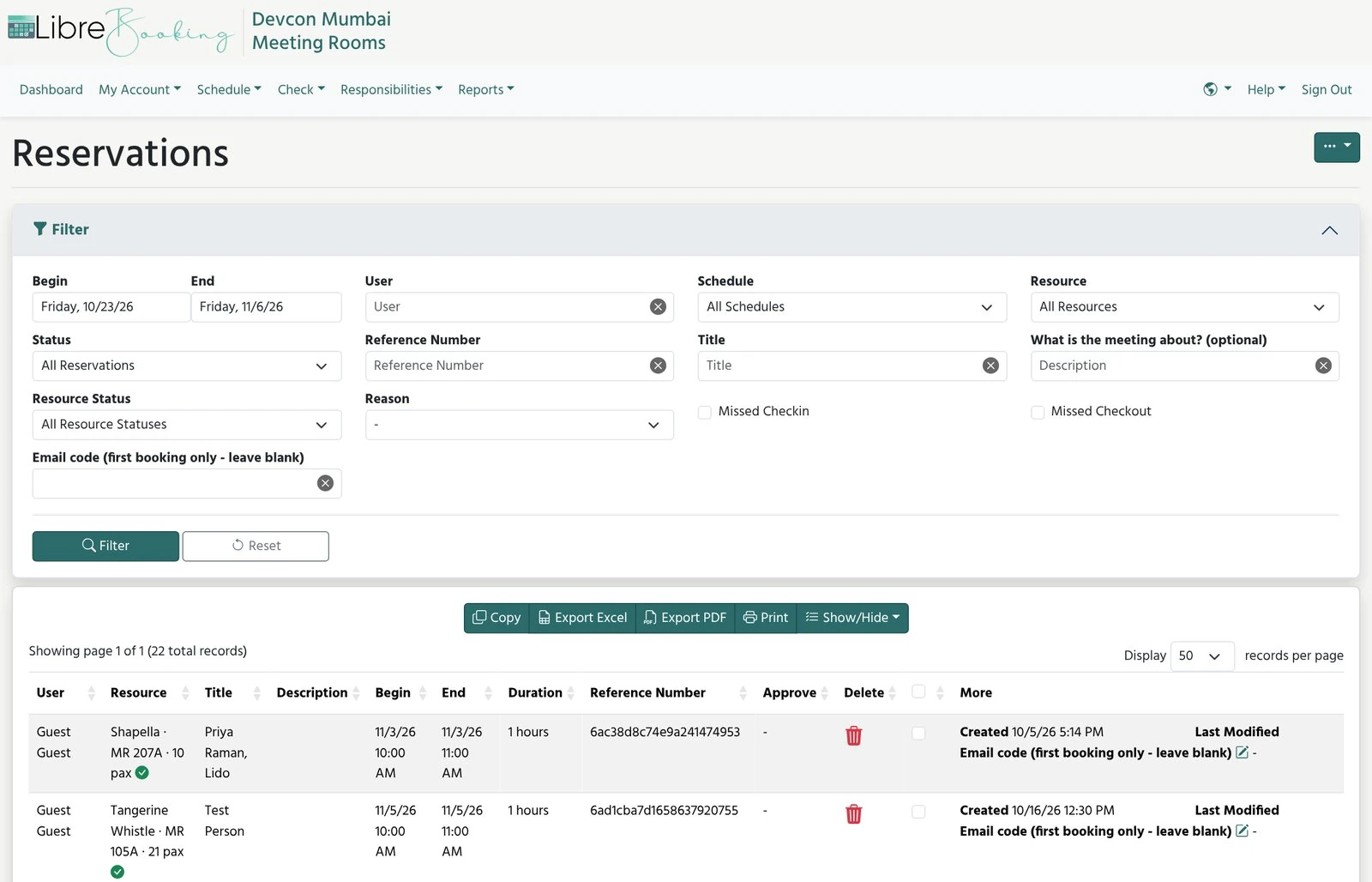
- Go to Responsibilities, then Schedule Reservations.
- Filter by Title (their name), Reference Number (in their confirmation email), Resource (room) or date.
- Tap the result to open it. You can check them in from there.
Quick alternative: use your browser's find (Ctrl+F or Cmd+F) on the grid page and type their name.
Ending early or cancelling
| Situation | What to do |
|---|---|
| Meeting finished early | Open the booking and tap Check Out. The rest of the slot becomes free |
| Attendee wants to cancel a future booking | Open the booking, then More, then Delete. They can also cancel from their confirmation email |
| A group is overstaying into the next booking | Politely tell them the next group has the room. Show them the grid if needed. Escalate if they will not leave |
Questions attendees ask at the door
| They say | You answer or do |
|---|---|
| How do I book? | Go to rooms.devcon.org, tap a free slot, enter your email, then your name and organisation. Pick up to 60 min and tap Create |
| It asked for an email code | First booking only. A 6-digit code goes to their email. They type it in Email code and tap Create again |
| The code never arrived | Check spam and promotions and wait a minute. Then clear the Email code field and tap Create for a new one. Still nothing: book it for them as a walk-in if the room is free now, and tell Calvin (email may be down) |
| It says the code is wrong or expired | Codes last 15 minutes. Clear the field and tap Create to get a new one |
| My second booking asks me to log in | Their password is in the welcome email from their first booking. Forgot password on the login page also works |
| This room is reserved for the EF team | Dencun and Pectra are EF only. Pick any other room |
| I cannot book the slot that is happening now | Book it for them as a walk-in |
| I need more than an hour | Book the next slot as a separate booking, up to 2 hours a day in total |
| We are more than 21 people | No meeting room seats more than 21 (Tangerine Whistle, Byzantium). Send them to the info desk |
| Who is in this room? Who booked after me? | Do not share other people's names or emails. Just say whether the room is free or taken, and until when |
Keep the volunteer screen turned away from attendees where you can. It shows every booker's name and email.
What not to touch, and who to call
Your login can also change room settings, so a few menus are off-limits. Under Responsibilities, leave Resources, Blackout Times, Schedules and Announcements to the ops team. A change there affects every room and every booking.
- Do not book rooms for yourself or friends.
- Do not delete bookings except a cancellation the attendee asked for.
- If a room cannot be used (broken screen, no AC, locked), tell Calvin. Ops will block it in the system.
| Problem | Who |
|---|---|
| Room issue: AV, AC, cleaning, locked door | Calvin, who loops in the venue team |
| Site down, error messages, cannot log in | Calvin, who loops in the tech team |
| Several people say booking emails or codes are not arriving | Calvin |
| Group will not leave, or two groups claim the same room | Calvin, or your floor lead |
| Lost or shared volunteer login | Calvin, straight away, so the password can be changed |
Contact: Calvin, @thisiscalvin on the Telegram group, or a direct message if urgent. End of shift: hand the device to the next volunteer still signed in, or tap Sign Out (top right) if nobody is taking over.
Interview and Press Room
Make sure only the right people get into the Interview Room, and keep interviews running on time. You do not produce or moderate anything. Your main responsibility is to control access and timing.
Location: Level 1, Interview Room. Devcon lead: Joe (Joseph Schweitzer).
Access: who can enter
The Interview Room is closed access. Only two groups can enter: speakers on the daily interview schedule, during their own slot, and media with the special Press wristband.
No schedule, no wristband, no entry. That includes other attendees, speakers who are not scheduled, their friends or teams, and media without the wristband. Be polite and firm, and send them to Joe. A regular event badge or a general press credential does not give access. Only the special wristband does.

Schedule
You get a daily agenda from Joe. It lists each interview with the time, speaker, outlet and contacts. All times are in IST, with 10 to 15 minute buffers between interviews. Arrive 15 minutes before your shift starts. At shift change, brief the next team on any open issues and on changes to the schedule.
Every interview
| When | What you do |
|---|---|
| 15 min before | Check that the speaker and the journalist are on their way or already there. If either is not responding, message Joe |
| Start | Check both in against the daily agenda, check the journalist's wristband, and remind them of the end time |
| 5 min before the end | Give a heads-up so they wrap up, and make sure the next speaker and journalist are ready |
| End | The interview ends on time, even if it started late, because speakers often have talks right after. Leave the room clear and ready for the next interview |
Joe handles all the content side: topics, on and off the record, and spokesperson briefings. You only handle access and timing.
Room rules
- Speaker or journalist does not show: message Joe right away. Do not swap anyone in yourself.
- Media asks for an unscheduled interview: they cannot book on the spot. Send them to Joe.
- Speaker wants to extend or move their slot: only Joe can approve this.
- Room is free between interviews: wristbanded media can use the workspace, but they must leave the interview area clear for the next slot.
- Keep the room quiet during interviews, and leave the room as you found it.
- Any issue with the room, equipment, Wi-Fi or power: tell the AV team on site, and message Joe.
Contacts: Joe for schedule, media, access and escalations. Back-up is Emily (@emilymvaughan) or Candela (@candufaz). When in doubt, message Joe.
Podcast Room
Keep the Podcast Room running on time and stay in touch with Candela. You do not produce anything. Make sure each slot starts and ends when it should.
Location: Podcast Room, Level 3 Content Corner. It is a recording room for supporters, podcasters and creators. Devcon provides the space and the equipment, and the guest brings the show.
Schedule (IST)
Every slot is 1 hour. You get a daily agenda with who is recording in each slot and their contacts. Podcasters arrive 15 minutes before their slot. Volunteers arrive 15 minutes before their shift. At shift change, brief the next team on any open issues.
| Day | Room hours | Morning shift (3) | Afternoon shift (3) |
|---|---|---|---|
| Tue 3 Nov | 14:00 to 18:00 | None | 14:00 to 18:00 |
| Wed 4 Nov | 10:00 to 18:00 | 10:00 to 14:00 | 14:00 to 18:00 |
| Thu 5 Nov | 10:00 to 18:00 | 10:00 to 14:00 | 14:00 to 18:00 |
| Fri 6 Nov | 10:00 to 14:00 | 10:00 to 14:00 | None |
What the room has
- One Sony FX6 camera with lens and tripod, and a monitor to check framing.
- Two lapel mics, two table podcast mics and an audio mixer.
- Lighting set up for the room, and power strips.
- One camera and audio operator on site who runs the setup.
Bookers bring their own guests, topic and run of show, somewhere to store their files, and chargers for their own devices. Creators coordinate their own speakers and guests directly, and a show can have more than one speaker. You only handle the timing.
Every slot
| When | What you do |
|---|---|
| 10 min before | Check the creator is on their way or already at the room. If they have not shown up, message Candela |
| Start | Check them in against the daily agenda and remind them of the end time |
| 10 min before the end | Give a heads-up so they wrap up, and make sure the next creator is ready to go in |
| End | The slot ends on time, even if they started late, because late starts cannot be made up. Leave the room clear and ready for the next slot |
Empty slots and walk-ins
- Slot is empty or the creator does not show: message Candela right away. She will try to find someone to fill it.
- If the current slot is empty, anyone who asks can use the room until the slot's end time.
- If a recording finishes early, they can use the remaining time, but must be out before the next slot starts.
- If a podcaster arrives more than 15 minutes late and someone else has already taken the room, they lose their slot.
Room rules
- 1-hour slots. Start and end on time.
- No shilling projects. No sponsored, paid or promotional content is recorded in the room.
- Leave the room as you found it.
- Any issue with the room or equipment: tell the operator on site and Candela.
Contact: Candela is your point of contact for everything, on Telegram at @candufaz. When in doubt, message her.
Lost and found
Attendees will ask where to report a lost item or see what has been handed in. Send them to the Devcon Lost & Found app, where they can browse found items, report a lost one and see how to claim it with the item's reference number.
If someone hands you a found item, take it straight to the cloakroom desk, so it is logged with a photo and stored safely.
Still to confirm
Nothing here is guessed. These items stay marked until the Devcon team confirms them.
- Joe's Telegram handle for the Interview Room.
- The Interview Room opening hours and which volunteers cover each shift. The schedule table in the Notion guide is still empty.
- The seating for the Pink and Blue Discussion Corners, and whether they get a floor plan.
- Where the meeting room desk sits.
Plan your commute with the shift planning table, check what to carry, and save the emergency numbers.